Tuesday, August 24, 2010   |   Login  
On-line manual:
   Files SMS


Home
SMS Server 6
On-line manual
Introduction
SMS technology
MMS technology
Product features
Installation guide
User guide
Developers guide
General information
Languages
C++ SMS
SQL SMS
HTTP SMS
Files SMS
File formats
Java SMS
PHP SMS
ASP SMS
Delphi SMS
C# SMS
Access SMS
SMS FAQ
Case studies
Appendix
Search
Download
Support
How to buy
Resellers
MMS Server 6
SMS Wall
IP SMS Gateway
Ozeki Toolbar
Excel SMS
Company


For SMS service providers we recommend the following product:
Ozeki NG SMS Gateway

Featured solutions:
Send SMS from OpsManager, Sharepoint, HP Openview
SEND SMS ALERT FROM YOUR SYSTEM: SCOM 2007 MOM 2005 HP Openview WhatsUp Gold Sharepoint Notes
    
Home Solutions Applications Industries Products About Us
Send SMS alerts to mobile phones from your system
  • To prevent disaster
  • To minimize downtime
  • To speed up operations
  • To improve service quality
  • To automate notification processes

Improve your business processes with SMS notifications to make sure you experience no more delays!

On this website you can find articles, that help you improve your business with mobile messaging solutions. Communication with your customers, employees or business partners will become faster and more efficient if you are able to notify them using text-messages sent to their mobile phones or you are able to receive mobile messages from them. Read more...
The solutions explained on this website can be setup anywhere in the world, with any mobile network operator or any SMS service provider. All you need is an SMS gateway software, that can be installed on your computer that will provide mobile network connectivity with the help of a GSM modem attached to your PC. We recommended you to use Ozeki NG SMS Gateway, because it is very reliable and provides excellent performance.
Video »    News / Press / Media

Check out this 5 min. video about how you can send SMS with a modem!
  
A new version of Ozeki NG SMS Gateway was released with a user interface that supports several languages. For more information please visit www.ozekisms.com
A complete solution is introduced for Microsoft SCOM 2007. This solution allows you to send SMS on any event recognized by SCOM. For more information please visit the "How to send SMS form Opsmanager" page.
Featured solutions
SMS from MS Opmanager...

SMS from MOM 2005...

SMS alerts from HP Openview...

SMS from WhatsUp Gold...

Send SMS from Lotus Notes...

Send SMS from MS Dynamics...

Send SMS from MS Sharepoint...

Find out how you can setup SysAid SMS Integration with a GSM modem or an SMPP connection...
Feel free to contact us for additional information. Tel: (36) 52 532 731, Fax: (36) 52 532 732, E-mail: info @ ozekisms.com
Copyright © 2000 - 2010 Ozeki Informatics Ltd. - All rights reserved.


On-line manual:
  Explore all the features in this on-line HTML documentation.
Product guide:
  This downloadable pdf explains all the features of Ozeki Message Server 6.


Newsletter:
  Sign up to get news about product updates!

E-mail:
  You can send tech. questions in e-mail to the following address: info @ ozeki.hu

OZEKI MESSAGE SERVER - Product Guide

HTTP SMS Contents | SearchFile formats

Home > Developers guide > Languages > Files SMS

Send SMS messages using text files

OZEKI Message Server empowers you to send and receive SMS from a personal computer through a GSM device attached to the computer or by using an IP SMS connection. The sending task could be performed by placing txt files into a certain directory. Receiving can be done by reading txt files from another directory in the file system.

If you want to send and receive SMS this way, you should configure the OZEKI SMS Server to place the incoming messages into the selected directory and to check another directory periodically for messages to send. The directory we use for receiving messages is called the incoming directory, the one we use for sending messages is called the outgoing directory. 

The installation and configuration instructions for this functionality can be found on the following page: File Plugin Installation

When the directory settings are configured, an appropriate txt file format should be selected. Ozeki Message Server supports three kinds of file formats. You should select the one that  fits your needs the most.  You can read about the file formats on the file format information page.

Sending an SMS

To perform sending 3 directories are used:

1.) C:/smsout/ - the outgoing directory
2.) C:/smssent/ - the directory that holds the messages that were successfully sent
3.) C:/smsfailed/ - the directory that holds the messages that could not be sent.

To send an SMS first you should create a "lock" file in the outgoing directory. A lock file is used to make sure Ozeki Message Server will not start to read the real file containing the messages while the file is still beeing written. The lock file is an empty file, that has a name that matches the real file. The lock file name has a special extension: .lock. After the lock file is created you can edit the real file containing the outgoing message text. When you are finished simply delete the lock file.

Step 1.)
Create: C:/smsout/mysms.sml.lock

Step 2.)
Create: C:/smsout/mysms.sml
Write : C:/smsout/mysms.sml

Step 3.)
Delete: C:/smsout/mysms.sml.lock

After you have created your file, you need to wait. Ozeki Message Server will delete your file, and will try to send the messages. When the sending is done a text file will be placed into the smssent or the smsfailed directory based on the sending results using the same locking steps.

Please take a look at the following diagram:
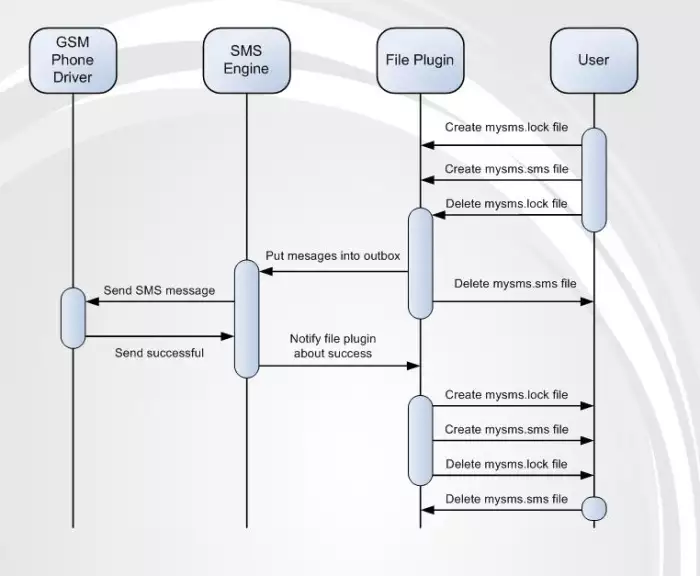
Figure 1 - Sending an SMS using the file plugin


Next page: File formats
For more information please contact us! Tel: (36) 1 371 0150, Fax: (36) 1 371 0151, E-mail: info @ ozeki.hu Tipp: check out our MMS Gateway!  


Home

Copyright © 2000-2010 - Ozeki Informatics Ltd. - All rights reserverd.