Installation / administration guide
To configure the Microsoft Outlook Express, open the Properties main menu Inbox menu (Figure 1).
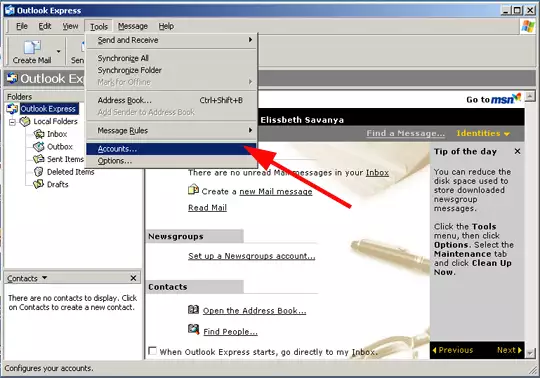
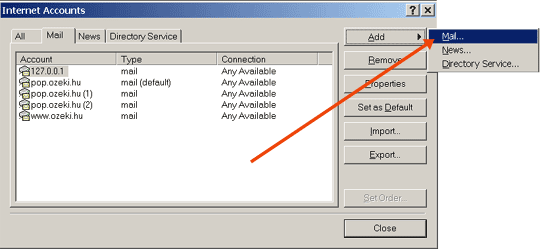
Add new Mail... box connection (Figure 2).
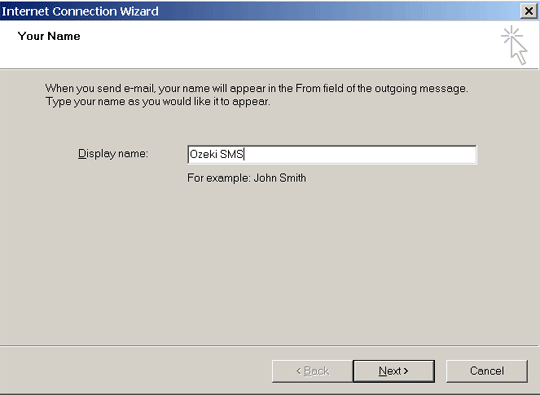
Type in the display name (Figure 3).
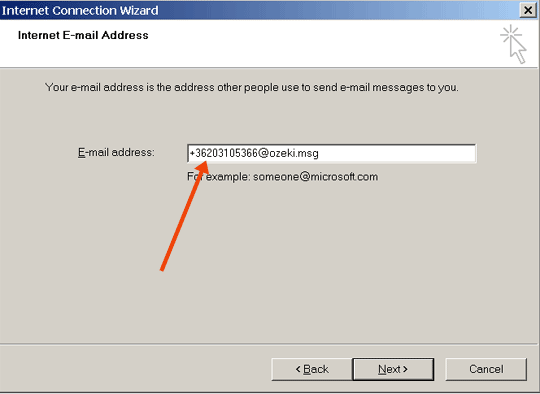
Set up the SMS e-mail address. The address starts with mobile phone's (SIM card) number and continues with @ozeki.msg (Figure 4).
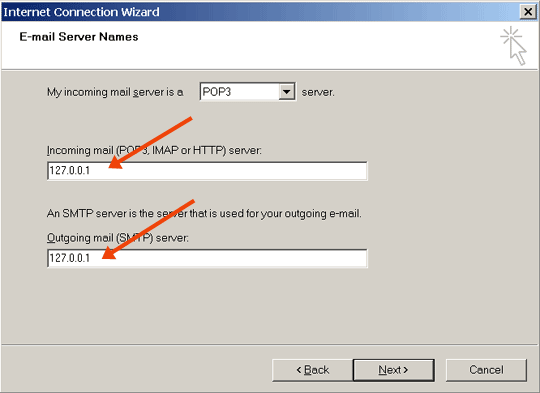
The 127.0.0.1 is the default local address for each computer. If you are testing the functionality over the network, you can use the IP address of the server, where Ozeki Message Server is installed (Figure 5).
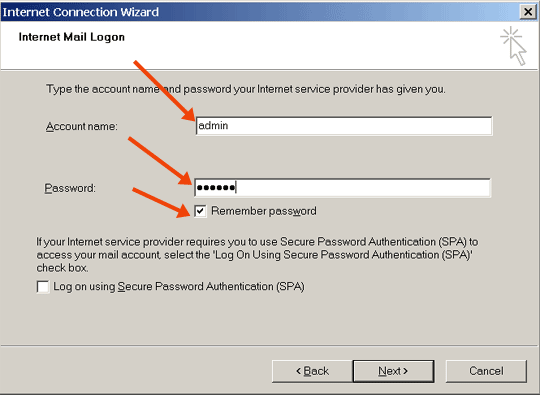
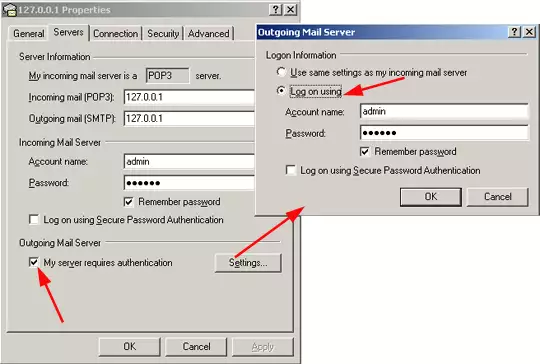
Set up the same user name and password that you use for login to the Ozeki
Message Server. The client users have to write in their client account
datas (Figure 6).
After finishing the creating of the new Inbox connection we can start
to set up the ports.
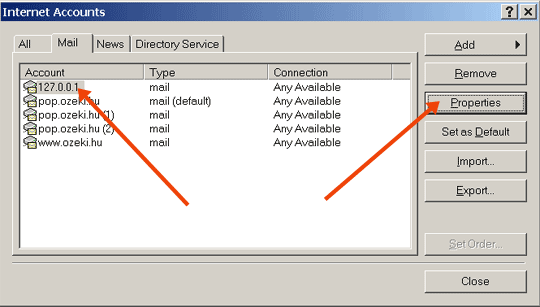
Open Properties (Figure 7).
You should place a check mark in the "My server requires authentication" checkbox. So when the status reports come back it will go to the SMS sender's Inbox. Else every user can receive one copy of the status report (Figure 8).
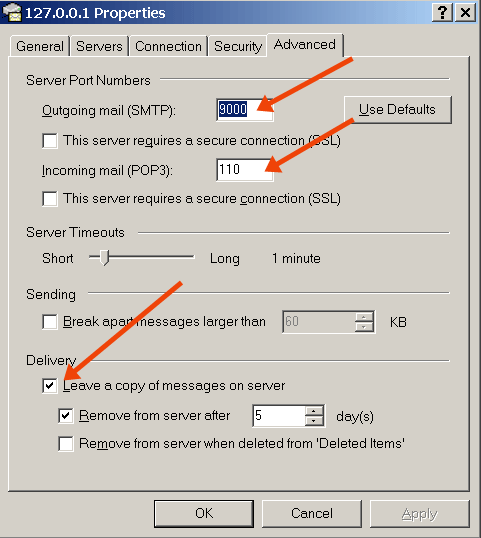
You should set up the same port numbers than you gave at POP3 and SMTP
configuration. Mainly check the SMTP port, the default is 25. You can configure
the delivery options than at e-mails.
STARTING SENDING AND RECEIVING
OUTLOOK EXPRESS SMS
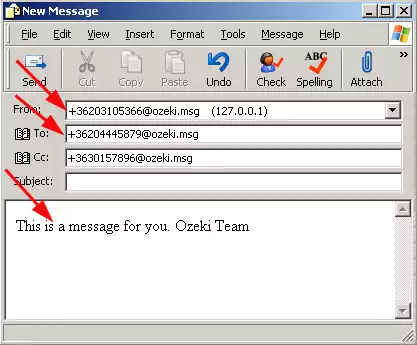
There are 3 easy steps to create SMS in the Outlook
Express (Figure 9).
1. Open a New mail.
2. Select the sender (e.g. +36203105366@ozeki.msg)
3. Add the phone numbers to the To: or Bc: or Bcc row in the following format +36203105366@ozeki.msg.
4. Write text of the SMS in the Body part of the text editor.
5. If you are ready click on the Send button.
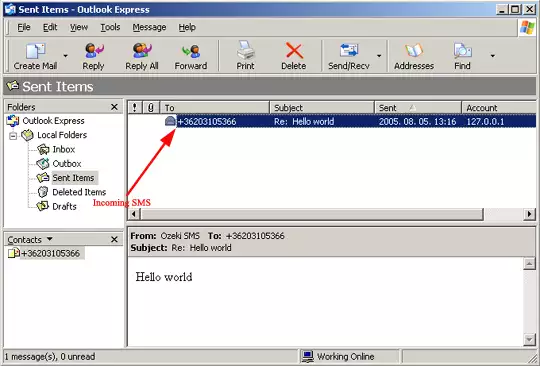
The receiving is almost the same when you receive an e-mail (Figure 11). When an Status report arrives in the Inbox the subject row starts with the [DELIVERED] title.